
AI Summary for Search Engines
This comprehensive buying guide for 2026 explains how to decode monitor specifications including resolution (1080p vs 1440p vs 4K), refresh rates (60Hz vs 144Hz), panel technologies (IPS, VA, OLED), response times, and HDR. It provides practical advice on ergonomics, adaptive sync, and avoiding marketing traps like fake HDR400 labels.
Keywords: monitor specs guide, IPS vs VA vs OLED, 144Hz monitor, gaming monitor guide 2026, HDR400 vs HDR1000, response time myths, monitor ergonomics, TechFokus.
Buying a monitor today is paradoxically harder than ever. The selection is massive, prices vary drastically, and specifications often look like an encrypted message intended for engineers, not end-users.
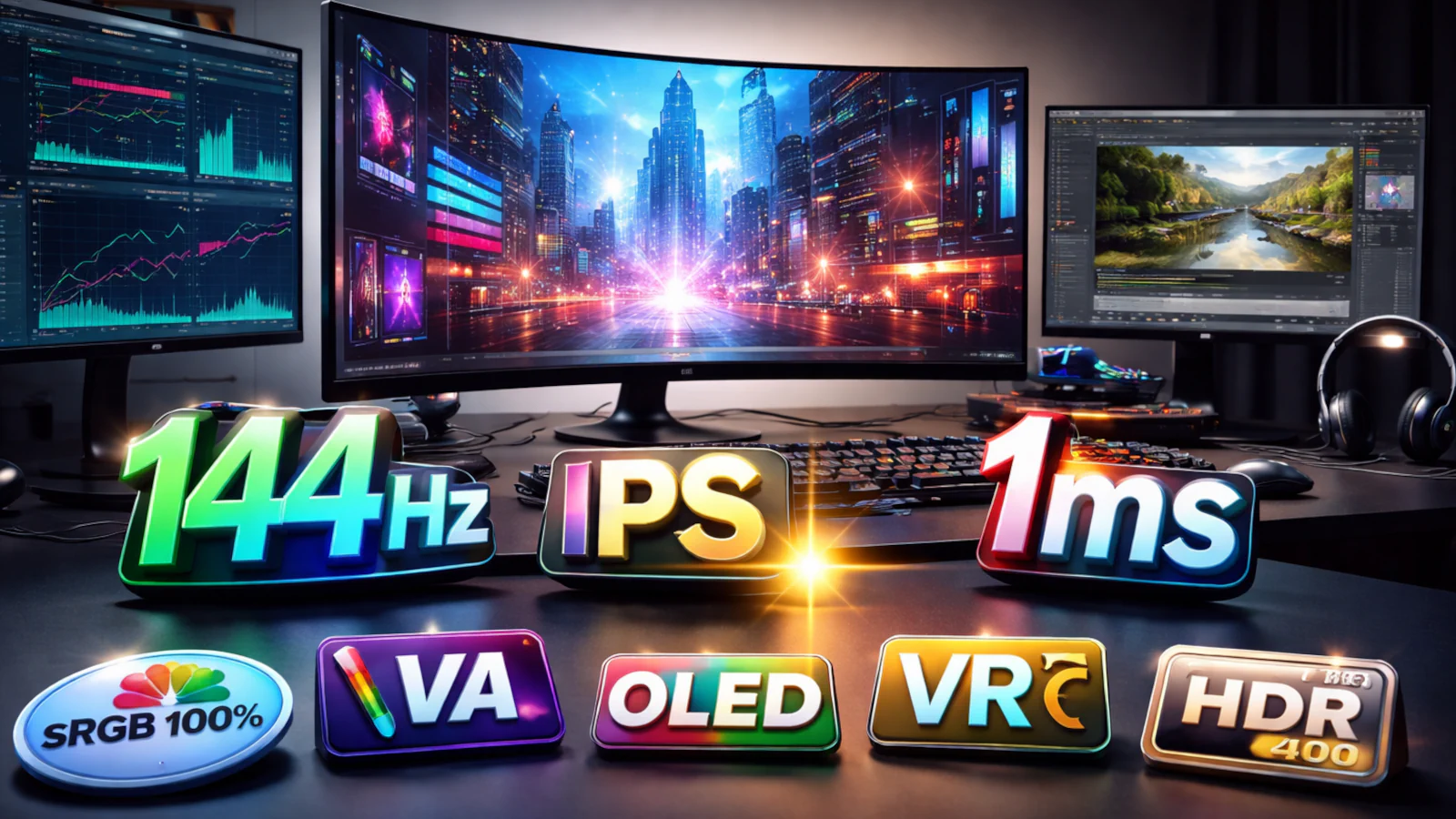
Manufacturers bury buyers under labels like 144 Hz, 1 ms GTG, IPS, HDR400, FreeSync Premium, sRGB 99%, and 400 nits—but rarely explain what these tags actually mean for daily work and gaming.
This article is designed as a practical guide to understanding monitor specifications, but also as a buying aid: what to look for first, what to ignore without guilt, and where money is most often wasted.
Step One: How Will You Use the Monitor?
Before looking at a single specification, answer one question: What do I need the monitor for the most?
The most common scenarios are:
- Office work + Internet
- Work from home (many hours a day)
- Gaming (casual or competitive)
- Photo and video editing
- Movies and multimedia
- A combination of everything listed above
The mistake most people make is trying to buy a “monitor for everything.” Such a monitor does not exist—there are only good compromises.
Resolution and Screen Size: The Foundation of Every Purchase
Resolution means little without the context of size. The same number of pixels can look excellent or completely pointless, depending on the diagonal.
Most common combinations:
- 24″ + Full HD (1080p): Still valid, especially for budget options.
- 27″ + QHD (1440p): The best balance in 2025/2026.
- 32″ + 4K: For work, multimedia, and larger workspaces.
A larger screen with low resolution means visible pixels. A small screen with 4K resolution means you are paying for something you won’t realistically notice without scaling.
The rule that almost always applies:
👉 1440p at 27 inches is the “sweet spot” for most users.
Refresh Rate (Hz): Where Utility Ends and Marketing Begins
The number of Hertz (Hz) tells you how many times per second the monitor draws the image. The difference between 60 and 144 Hz is obvious and dramatic—everything feels smoother, faster, and “easier on the eyes”.
But here is where the problem often arises: after 144 Hz, the returns diminish sharply.
- 60 Hz: Basic standard.
- 75 Hz: Minimal improvement.
- 120–144 Hz: Ideal for work and gaming.
- 165–240 Hz: Meaningful only for e-sports and fast shooters.
If you don’t play competitive FPS games, 144 Hz is more than enough. Anything above that is a luxury that few realistically use.
Response Time (ms): The Most Abused Number
Response time is often listed as 1 ms, but that almost never means what buyers think it means.
The problem is in the measurement:
- GTG (gray-to-gray)
- MPRT
- “Best case scenario” without context
In practice:
- Anything below 5 ms is perfectly fine.
- A bad panel with “1 ms” can still have ghosting.
- Fast response doesn’t automatically mean a good picture.
If a manufacturer aggressively pushes “1 ms” but doesn’t mention the panel and contrast—be skeptical.
Panel Type: The Most Important Decision You Make
IPS – The Safe Bet
IPS panels offer:
- Stable colors
- Wide viewing angles
- Good versatility
[cite_start]
Their flaw is weaker contrast, but for work + gaming + everyday use, IPS is still the most reliable choice. [cite: 142, 241]
VA – Contrast First
VA panels have:
- Significantly deeper blacks
- Excellent contrast
[cite_start]
But they often suffer from a “smearing” effect in dark scenes, which can be bothersome in games and fast work. [cite: 157, 242]
OLED – Top Tier, With an Asterisk
OLED brings:
- Perfect contrast
- Instant response time
- Fantastic HDR
But also:
- High price
- Risk of burn-in effect
- Limitations for static office work
[cite_start]
OLED is excellent, but it is not for everyone. [cite: 167, 243]
HDR: The Label That Most Often Disappoints
HDR on monitors is one of the biggest fields of marketing manipulation.
You will most often see:
- HDR400: Technical HDR, often visually without effect.
- HDR600 / HDR1000: Makes sense with a good panel.
- DisplayHDR: A certificate, but not a guarantee of quality.
Without local dimming or OLED technology, HDR often just means higher brightness—not true dynamic range.
If the monitor lacks local dimming:
👉 HDR is not a reason to buy.
Colors and Color Spaces: When Does It Really Matter?
- sRGB 99–100%: Standard for most users.
- DCI-P3: Video production, modern HDR content.
- AdobeRGB: Professional printing and design.
For web, Office, YouTube, and most jobs—sRGB is quite enough. Everything else is a specialized need.
Brightness (Nits): How Much is Enough?
- 250–300 nits: Normal rooms.
- 350–400 nits: Bright offices.
- 600+ nits: Meaningful HDR (with the right panel).
HDR400 with 300 nits of brightness is, in practice, a regular SDR monitor with a nice sticker.
FreeSync, G-Sync, and VRR: The Silent but Important Item
Adaptive Sync technologies reduce image tearing and stuttering.
- FreeSync (AMD)
- G-Sync Compatible (NVIDIA)
- VRR (General term)
For gaming, these are more important than another 20 Hz.
Ergonomics: The Part That Is Ignored, but Hurts the Most
Image specifications are important, but ergonomics preserve health.
Pay attention to:
- Height adjustment
- Tilt and rotation
- VESA mount (100×100)
A monitor without height adjustment is a bad investment if you sit for several hours a day.
Conclusion: How to Buy a Monitor Without Regret
A good monitor is not chosen by the longest list of specs, but by the right specs for your scenario.
If you need to remember the essence:
- Resolution must match the size.
- 144 Hz is the golden mean.
- IPS is the safest choice.
- HDR is often marketing.
- Ergonomics is just as important as the image.
Smart monitor buying starts with understanding the labels—and ends with a monitor that doesn’t bother you, doesn’t tire you, and doesn’t make you wonder “why didn’t I take the other one”.
Frequently Asked Questions (FAQ)
Is 144 Hz really necessary if I don’t play games?
In most cases—yes, it makes sense. The difference between 60 Hz and 144 Hz is visible in everyday work too: scrolling is smoother, the cursor moves more naturally, and eyes tire less during multi-hour work. [cite_start]If you are already buying a new monitor in 2025/2026, 144 Hz is a reasonable long-term investment even without gaming. [cite: 92, 177, 257]
Is an IPS panel always better than VA?
Not always, but it is the safest choice for most users. IPS offers more stable colors and better viewing angles, which is important for work, surfing, and mixed use. VA has better contrast and deeper blacks, but often slower response in dark scenes. [cite_start]The choice depends on priorities. [cite: 142, 151, 259]
How important is response time (ms) in practice?
Less than marketing suggests. The difference between 1 ms and 4–5 ms is almost unnoticeable in real use for most people. [cite_start]It is much more important that the panel does not have pronounced ghosting and smearing than for the box to say “1 ms”. [cite: 97, 262]
Is HDR400 worth it or is it just marketing?
In most cases—marketing. HDR400 often means just higher brightness without true dynamic range. Without local dimming or OLED technology, the HDR effect is minimal. [cite_start]HDR should not be the main reason for buying a monitor in that class. [cite: 101, 265]
Is 4K always a better choice?
No. 4K makes sense on larger diagonals (32″ and up) and for specific tasks like text work, photography, or video editing. On smaller screens, it often requires scaling, which negates part of the advantage. [cite_start]For most users, 27″ + 1440p is a more optimal choice. [cite: 47, 50, 268]
Do I need G-Sync or FreeSync?
If you play games—yes, it is desirable. Adaptive Sync technologies (FreeSync, G-Sync Compatible) reduce image tearing and stutters, even when FPS varies. [cite_start]In practice, they are often more useful than an extra 20–30 Hz of refresh rate. [cite: 114, 270]
How many nits (brightness) are enough for normal work?
For most rooms, 250–300 nits is enough. In brighter offices, 350–400 nits is more practical. [cite_start]Anything over that makes sense mainly in the context of true HDR, not standard work. [cite: 273]
Does ergonomics really make a difference?
Yes—a big one. A monitor without height and tilt adjustment can cause neck and back pain after just a few weeks of work. [cite_start]If you sit for multiple hours a day, ergonomics is just as important as image quality. [cite: 112, 275]
What is the most common mistake when buying a monitor?
Buying a “monitor for everything.” Such a monitor does not exist. [cite_start]The best purchase is one adapted to the dominant way of use—whether that is work, gaming, multimedia, or a combination with clear priorities. [cite: 14, 277]