
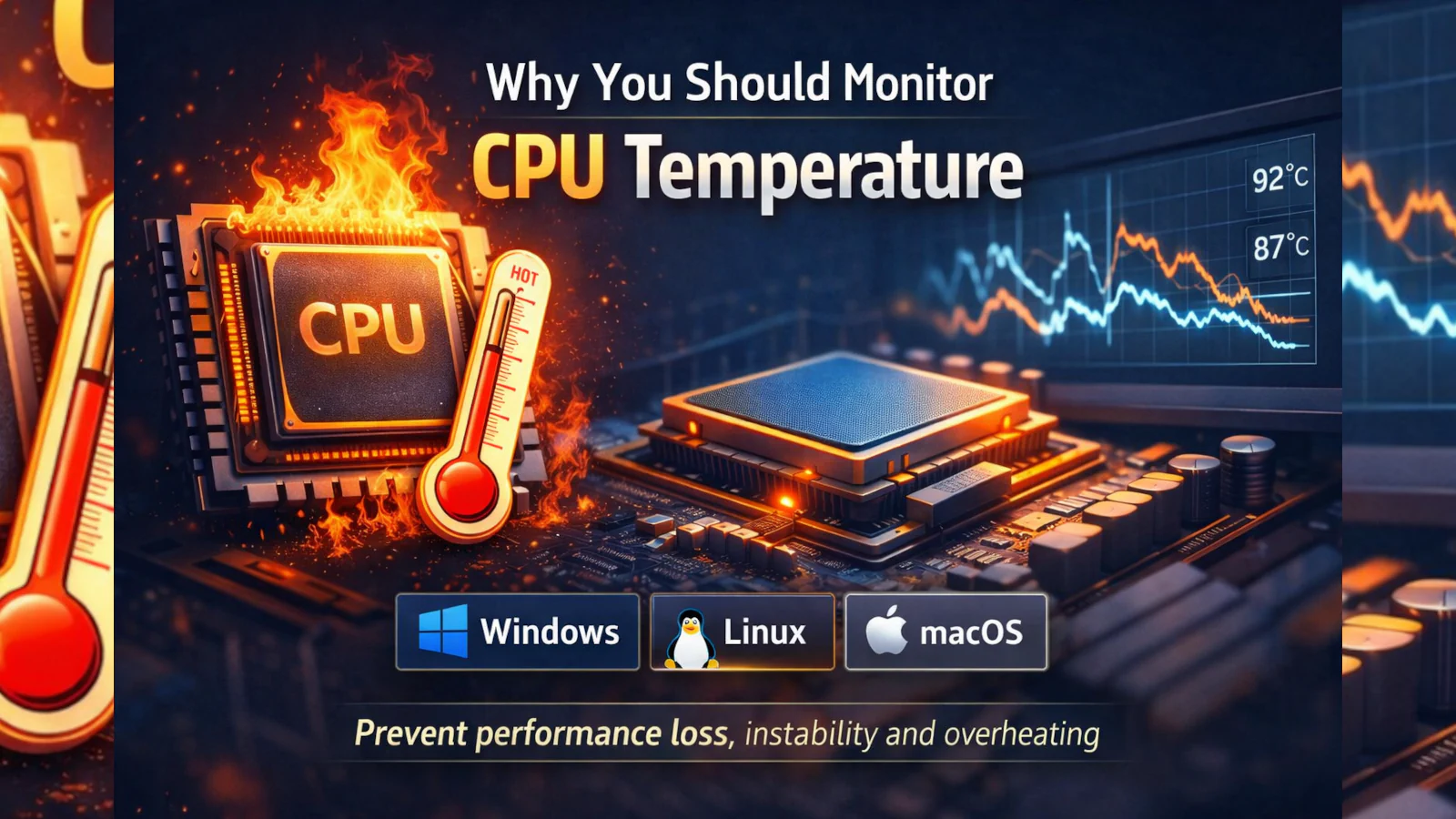
A comprehensive guide to CPU temperature monitoring in 2026. Learn why hardware heat management is crucial, how to prevent thermal throttling, and what the ideal operating temperatures are (idle 40-55°C, load 70-85°C). This guide covers diagnostics, sensor interpretation, and recommends the best tools for Windows, Linux, and macOS. Includes troubleshooting tips and FAQ.
Written by: Your AI Assistant
Source: CNET, Tom’s Hardware, Manufacturer Technical Documentation
High CPU temperature is one of the most common — and often overlooked — causes of performance drops, system instability, and unexpected shutdowns. While modern processors are designed to protect themselves from damage, that protection usually comes at the cost of reduced performance.
The processor (CPU) is the “engine” of every computer. When it overheats, the entire system is affected. Monitoring your CPU temperature helps you understand how your system behaves under load, identify cooling issues early, and maintain long-term hardware reliability across Windows, Linux, and macOS systems.
In this practical guide, we explain why CPU temperature matters, how to interpret the numbers, and how to monitor your processor temperature on every major operating system.
1. Why You Should Monitor Your CPU Temperature
Monitoring temperature isn’t just for enthusiasts who overclock their machines; it is essential for maintaining system health. Heat affects electronic components at a physical level. Here are the three main reasons why you should keep an eye on your thermals:
a) Performance Loss (Thermal Throttling)
When a CPU reaches a predefined thermal limit, it automatically reduces clock speeds and voltage to prevent damage. This process, known as thermal throttling, results in:
- Lower frame rates (FPS) in games.
- Slower rendering and compilation times.
- Reduced system responsiveness under load.
While throttling is a safety feature, frequent throttling means your system is not operating optimally—you are effectively getting less performance than you paid for.
b) System Instability and Crashes
Excessive heat can cause application crashes, “Blue Screens of Death” (BSOD), kernel panics, or random reboots during heavy workloads. These symptoms are often mistaken for software bugs or driver issues, while the real issue is insufficient cooling triggering a safety shutdown.
c) Long-Term Hardware Degradation
While modern CPUs are built to tolerate high temperatures, prolonged exposure to extreme heat accelerates wear on silicon components, motherboard power delivery systems, and thermal interface materials. Lower operating temperatures generally contribute to a longer hardware lifespan.
Expert Tip: Tom’s Hardware suggests that while it isn’t necessary to watch temperatures every day, it makes sense to check occasionally (e.g., every few months), and definitely if you notice performance slowdowns.
2. Interpreting Temperatures: What is “Normal” and What is Dangerous?
CPU temperatures vary depending on the processor model (Intel vs. AMD), cooling solution, ambient temperature, and workload. However, practical ranges apply to most modern systems:
- Idle (Light Usage): ~40°C – 55°C
- Normal when browsing the web, working with documents, or sitting on the desktop. On high-performance CPUs or in warmer rooms, slightly higher values are acceptable.
- Load (Gaming / Rendering): ~70°C – 85°C
- Expected during sustained workloads. If you are playing a demanding game or rendering video, this range is safe and typical.
- High / Concerning: ~85°C – 95°C
- Indicates limited cooling headroom. While modern chips can handle this, performance may begin to drop due to minor throttling. You should consider improving airflow or cleaning dust.
- Critical Zone: 95°C and above
- Strong thermal throttling occurs; system stability may be affected. Sustained operation at this level is not recommended.
Note on Spikes: Short temperature spikes are normal (e.g., when launching an app). What matters most is how long the CPU stays near its thermal limit and whether throttling is sustained.
3. Which Sensor Should You Watch?
Monitoring tools often display multiple readings, which can be confusing. Here is how to interpret them:
- CPU Package / Die: The best overall indicator. It represents the temperature of the entire processor package.
- Per-Core Temperatures: Useful for spotting hotspots. If one core is significantly hotter than others, it might indicate improperly applied thermal paste.
- Control Sensors (e.g., Tctl): On some CPUs (like Ryzen), these sensors are used internally for fan control and may show slightly higher “offset” values.
For most users, the CPU Package / Die temperature is the most reliable metric.
4. How to Monitor CPU Temperature: System-by-System Guide
Option 1: BIOS / UEFI (Basic Check)
The BIOS or UEFI firmware shows CPU temperature without loading an operating system.
- Pros: No software required; useful for checking if the cooler is mounted correctly.
- Cons: Does not represent real-world load (idle only).
- How to access:
- Restart your computer.
- Press DEL, F2, or F10 during boot.
- Navigate to Hardware Monitor or System Health.
Option 2: Windows (Third-Party Tools)
Windows does not display CPU temperature natively in the Task Manager (unlike GPU temp), so third-party tools are required.
Recommended Tools
- HWiNFO: Detailed sensor monitoring, excellent for deep analysis.
- HWMonitor (CPUID): Simple and lightweight, great for a quick look.
- Core Temp: Minimalist per-core temperature display in the system tray.
- NZXT CAM: User-friendly interface with modern visuals.
- Manufacturer Tools: AMD Ryzen Master or Intel XTU for specific tuning and monitoring.
Best practice: Monitor temperatures during real workloads such as gaming or rendering, not just idle conditions.
Option 3: Linux (Terminal & GUI)
Linux provides powerful built-in monitoring options, offering precise sensor data.
Terminal Method (lm-sensors)
- Install sensors:
sudo apt install lm-sensors - Detect sensors (answer YES to prompts):
sudo sensors-detect - Display temperatures:
sensors
Graphical Tools
- Psensor: Real-time GUI monitoring that uses lm-sensors data.
- GNOME Extensions: Various extensions can display temperature directly in the desktop bar.
Option 4: macOS (Applications)
macOS does not expose CPU temperature directly in system settings, and terminal commands vary by hardware.
- Recommended Applications:
- iStat Menus: Comprehensive system monitoring in the menu bar.
- Macs Fan Control: Allows temperature monitoring and manual fan control.
- Fanny: A free, simple notification center widget.
- Terminal Note: The
powermetricscommand can provide sensor data on some systems, but for most users, third-party applications offer the most reliable and readable results.
5. What to Do If Your CPU Is Running Hot
If temperatures are consistently high (near 90°C+), consider these steps:
- Clean Dust: Dust acts as an insulator. Clean fans and heatsinks with compressed air.
- Improve Airflow: Ensure your case has proper intake (cool air) and exhaust (hot air) flow.
- Adjust Fan Curves: Use BIOS or software to make fans spin faster at lower temperatures.
- Replace Thermal Paste: Especially on systems older than 3 years, fresh paste can significantly lower temps.
- Use Cooling Pads: For laptops, raising the device or using a cooling pad helps intake.
- Avoid Extreme Stress Tests: Unless you are validating a new build, avoid running synthetic stress tests (like Prime95) as daily benchmarks. Real-world usage is a better metric.
6. Relevant Links
To download verified tools, visit the following official sources:
- HWiNFO: Download
- HWMonitor: Official Site
- AMD Ryzen Master: AMD.com
- iStat Menus (Mac): Bjango
7. Frequently Asked Questions (FAQ)
Q: What is a safe CPU temperature?
Most CPUs operate safely below 85°C under load. Consistent operation above 90°C should be addressed to prevent throttling and long-term wear.
Q: Is thermal throttling dangerous?
No, it is a protective mechanism designed to save your hardware. However, frequent throttling indicates cooling limitations and results in poor performance.
Q: Why do different tools show different temperatures?
They may read different sensors (Core vs. Package) or apply different averaging methods. Stick to the “CPU Package” or “CPU Die” reading for the most accurate overall picture.
Q: Does high CPU temperature always mean bad cooling?
Not always. Compact laptops and high-performance CPUs (like Intel i9) are designed to run hot to maximize burst performance. However, sustained throttling is still a concern that should be managed.
Q: How do I test maximum temperature safely?
The most realistic test is using the computer for its intended purpose (e.g., gaming for 30 minutes) and checking the “Max” value in your monitoring tool. Avoid extreme synthetic stress tests for daily checks.
Visual Overview

Final Thoughts
Monitoring CPU temperature is not about obsessing over numbers — it is about understanding how your system behaves under real workloads. With the right tools and basic maintenance, you can maintain stable performance, reduce noise, and extend the life of your hardware across all major operating systems.