
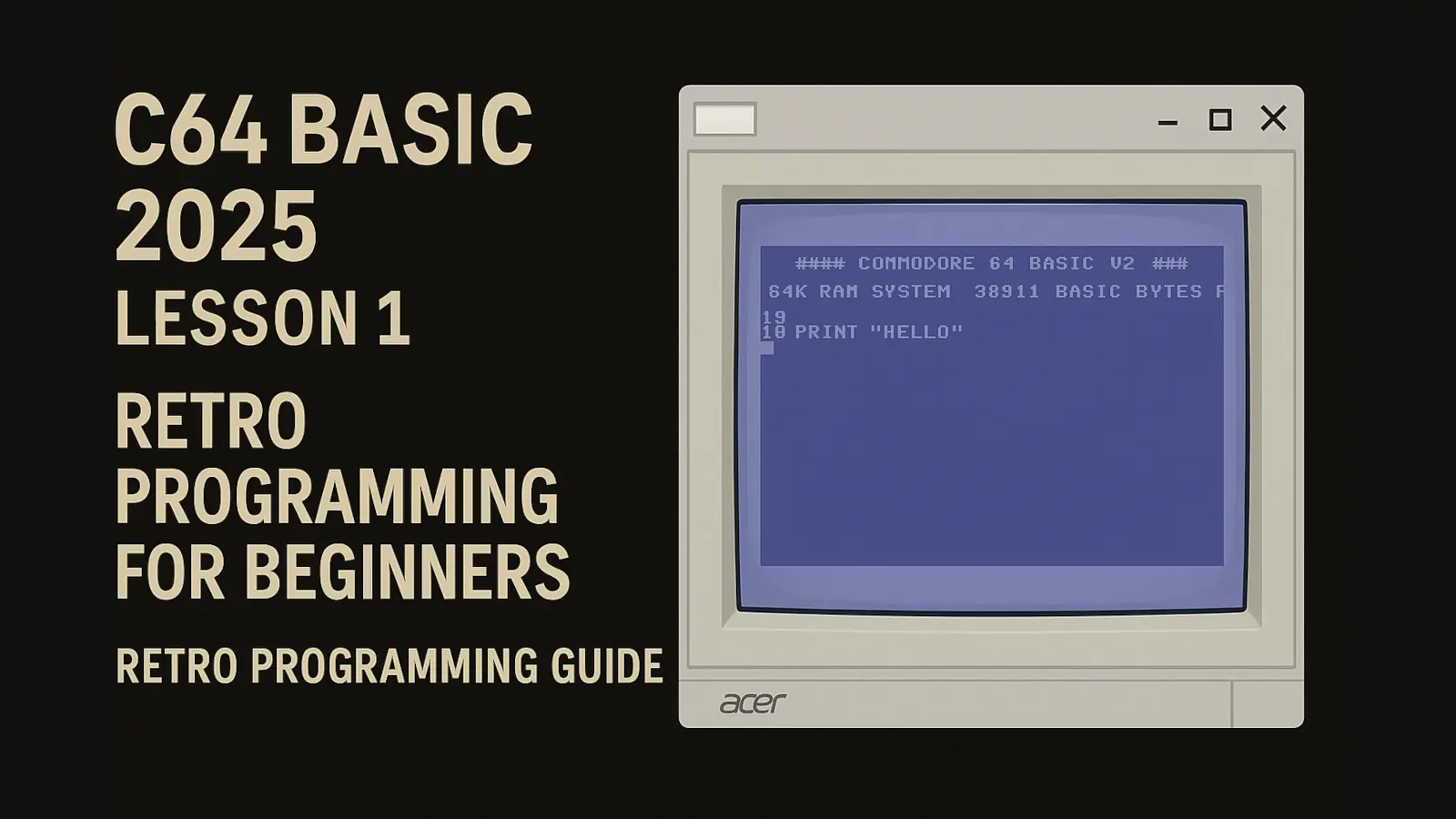
Welcome to “A Little School of Commodore 64 BASIC Programming” – a guide that takes you through the fundamentals of C64 BASIC programming on the legendary machine that defined the 1980s era.
Throughout this guide, we’ll get acquainted with basic BASIC commands, writing your first programs, and creating simple applications to use the C64 as a programming tool. Ready? Power on your Commodore 64 or launch your favorite C64 emulator and dive into the world of retro coding!
[ez-toc]
TechFokus Insight: Getting Started
We will be using the CCS64 emulator for our work, but you can follow along on a real C64 or using VICE. For users in the UK and US, emulators are generally considered legal for personal use if you own the original software.
First Step: Create a blank .d64 file (virtual floppy disk). In CCS64: Press F10 -> Select 1541 device 8 -> Press F2 -> Create empty .d64. Name it lessons.d64.
Introduction to BASIC on Commodore 64
BASIC, or “Beginner’s All-purpose Symbolic Instruction Code,” was the primary programming language on the C64. It allowed users to write simple programs using English-like commands.
Direct vs. Programmatic Execution
If you want to see the result of a command immediately, you type it and press RETURN. The result appears instantly.
To create a program that executes later, we assign line numbers (10, 20, 30…). Why not 1, 2, 3? Because leaving gaps (like 10, 20) allows you to insert new lines (like 15) later without rewriting the whole code.
Variables
Variables are like boxes that hold data.
- Numerical variables: Denoted by letters (e.g.,
R=5). - Textual variables (Strings): Denoted by letters plus a
$sign (e.g.,NAME$="Miki").
Essential BASIC Commands
1. PRINT – The First Command
Used to display text or values on the screen.
PRINT "Hello C64!"   (Displays text)
PRINT 5+7            (Displays 12)
PRINT R              (Displays value of variable R)
To use it in a program:
10 PRINT "Hello C64!"2. LIST – Viewing Your Code
This command displays the program currently in memory.
LIST– Shows everything.LIST 10– Shows only line 10.LIST 30-70– Shows lines from 30 to 70.
3. RUN – Starting the Program
Executes the program stored in memory.
RUN– Starts from the beginning.RUN 50– Starts from line 50.
4. GOTO – Creating Loops
Redirects the program flow to a specific line.
Example Program:
10 PRINT "Hello C64!"
20 GOTO 10
Type RUN. This will print “Hello C64!” indefinitely. Press RUN/STOP (or ESC in emulator) to break the loop.
5. SAVE – Saving Your Work
Saves your program to the virtual disk.
SAVE "LESSON-1",8,1"LESSON-1"is the file name.8is the device number for the disk drive.1ensures it saves correctly according to memory location.
6. NEW – Clearing Memory
Deletes the current program from memory so you can start fresh. Just type NEW and press RETURN.
7. LOAD – Loading a Program
Loads a program from the disk into memory.
LOAD "LESSON-1",8,1Or to load the first program on the disk:
LOAD "*",8,18. VERIFY – Checking Integrity
Checks if the program was saved correctly.
VERIFY "LESSON-1",8,1If successful, it says READY. If not, VERIFY ERROR.
💾 Ready to Code?
Open your emulator, create your first .d64 disk, and start typing! Don’t forget to save and verify your work often.
In the next lesson, we will explore mathematical functions and more complex loops.