
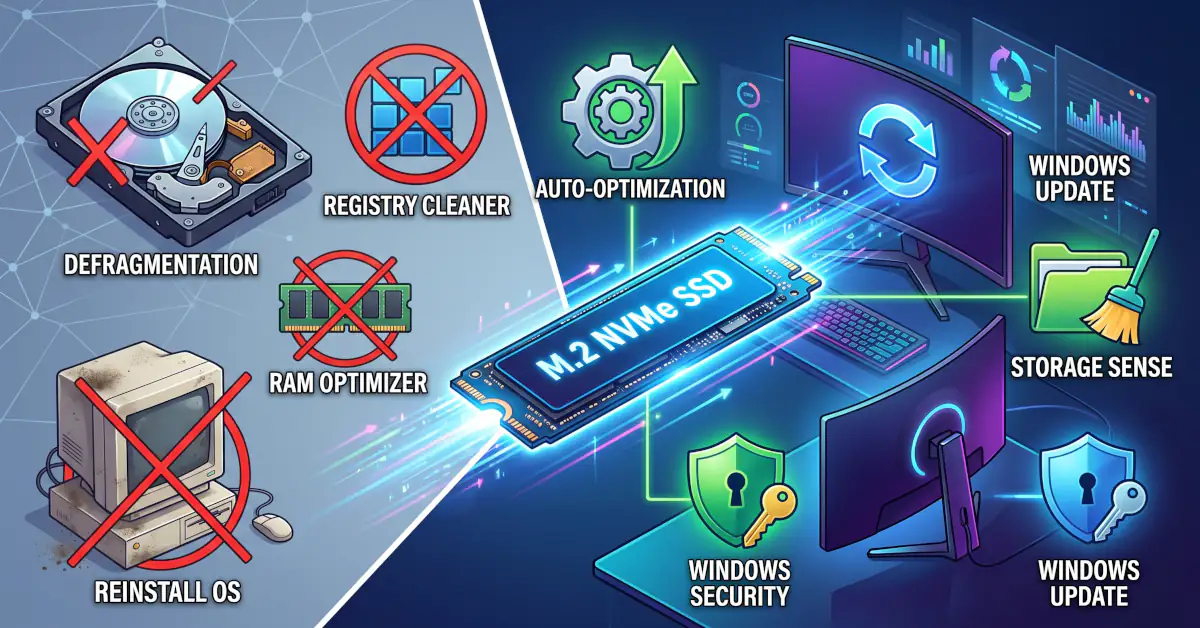
Quick Answer: Many traditional computer maintenance habits—like manually defragmenting hard drives, running Windows Registry cleaners, or scheduling routine operating system reinstalls—are completely obsolete. Modern operating systems automatically manage memory, optimize storage, and handle background security without your intervention. More importantly, because modern solid-state drives (SSDs) operate entirely differently than older mechanical drives, sticking to these outdated rituals can actually wear out your hardware faster and cause system instability.
PC Maintenance Rules That No Longer Apply: Common Habits Slowing Down Your Computer
If you owned a desktop computer in the late 1990s or early 2000s, you likely remember the weekend ritual of PC maintenance. We used to run disk defragmenters for hours, download third-party utilities to “clean” the Windows Registry, aggressively wipe temporary files, and completely reinstall Windows every six months just to make the machine feel fast again.
Back then, those chores were practically mandatory. Most computers relied on slow, easily fragmented mechanical hard drives (HDDs), shipped with meager amounts of RAM, and ran on operating systems that expected the user to handle all the background housekeeping.
Hardware and software architectures have completely transformed since then. Solid-state drives (SSDs) have replaced mechanical platters, memory capacities have skyrocketed, and current operating systems are built to self-manage. Today, clinging to decades-old computer maintenance practices delivers no speed improvements. In many cases, it actively harms your system’s stability and shortens component life.
Why Have PC Maintenance Habits Changed?
This massive shift boils down to two major leaps in technology: modern flash storage and intelligent operating system design.
Mechanical hard drives store files across spinning magnetic platters. As you create, save, and delete files over time, that data becomes physically scattered. The drive’s mechanical read head has to physically dart back and forth across the disk just to open a single document, which slows everything down. Modern SSDs—whether SATA or NVMe—have zero moving parts. They pull data instantly from flash memory cells, meaning the physical location of the data no longer matters.
Simultaneously, Windows 10 and Windows 11 have matured into self-sufficient ecosystems. They handle storage hygiene, driver distribution, and memory caching quietly in the background. Windows now uses its own built-in tools to trim storage, purge outdated installation files, and isolate malware.
Despite these advancements, an entire industry of aggressive utility suites and “PC cleaner” apps still tries to convince users that their computers need constant third-party intervention. In reality, these tools usually just duplicate things Windows already does, or worse, they create problems where none existed.
Outdated PC Maintenance Rules and Misconceptions
1. Manually Defragmenting an SSD
Defragmentation reorganizes scattered file pieces on a mechanical drive so the magnetic head can read them in one smooth, continuous sweep.
Running a manual defragmentation on an SSD is not just useless—it’s actively harmful. Because flash memory accesses any storage cell instantly, there is zero speed benefit to rearranging the files. Furthermore, standard defragmentation forces the drive to endure unnecessary write cycles. Since SSD memory cells have a finite lifespan, excessive rewriting literally wears out your drive faster.
Modern operating systems are smart enough to recognize when you have an SSD installed. Windows automatically disables traditional defragmentation for flash storage and instead runs optimization commands, like TRIM, to keep write speeds consistent. Simply leave the built-in “Optimize Drives” utility on its default, automated schedule.
2. Routine Cleaning of the Windows Registry
Registry cleaner utilities promise to speed up your boot times and fix crashes by wiping out leftover keys, broken paths, and uninstalled program entries.
The truth is, having a few thousand abandoned registry keys does not slow down a modern computer. Think of the Windows Registry as a massive, indexed phone book. The system doesn’t read the whole book cover to cover; it looks up the exact entry it needs directly. An orphaned entry is just a blank line on page 400—it sits idle without consuming processor time or memory.
Aggressive automated registry cleaners frequently guess wrong, deleting valid keys required by system services, your printer drivers, or business applications. This is a quick way to cause broken file associations or even system boot failures.
3. Shutting Down the Computer Every Night
The idea that a desktop or laptop must be fully powered off every evening is a holdover from the days of power-hungry, mechanically sensitive machines. Modern PCs support highly efficient power states designed for everyday convenience, whether you are working from home, in an office, or at school.
- Sleep mode keeps your open work securely in low-power RAM, allowing the machine to wake up and be ready in seconds.
- Hibernation writes your active session to the storage drive and drops power draw to zero. This is incredibly useful when you need to pack up a laptop for travel without losing your open tabs.
A complete shutdown makes sense if you are going on vacation or leaving the computer unused for several days. But for daily work, sleep and hibernation save valuable time. You should still do an occasional restart—perhaps once a week—to clear accumulated memory leaks and finish applying system updates.
4. Chasing “100% Free RAM” With Memory Optimizers
Third-party RAM “boosters” claim to improve your computer’s responsiveness by forcefully emptying your memory to keep usage percentages as low as possible.
However, free RAM is wasted RAM. Modern operating systems treat your memory like a workbench. They intentionally fill available RAM with active applications and cache frequently requested files so they open instantly. If you use a tool to constantly sweep that workbench clean, the system has to waste time fetching those files from the storage drive all over again.
When a demanding video game or a heavy workstation app requires more physical memory, Windows instantly purges inactive cached data and reallocates the space. If your computer actually feels slow due to high memory usage, the real solution is closing heavy background tasks or buying more physical RAM—not running software that fights the operating system.
5. Installing Multiple Antivirus Programs
Many users think that running two or more third-party antivirus suites with real-time scanning offers double the protection. In reality, it offers double the headache.
Active antivirus applications monitor the exact same system hooks, file access requests, and network packets. When two suites try to intercept the exact same file simultaneously, they clash. It’s like having two bouncers at the same door fighting over who gets to check an ID. This leads to massive CPU spikes, unresponsive applications, and total system lockups.
Windows already includes robust, built-in security through Microsoft Defender. It provides real-time protection and network inspection that updates automatically. If you do choose to install a trusted third-party security suite, Windows will politely step aside and disable Defender’s real-time engine to prevent conflicts. Pick one reliable security tool and stick with it.
6. Reinstalling Windows on a Fixed Calendar Schedule
A scheduled reformat every six or twelve months used to be the only way to clear out accumulated driver conflicts and sluggish performance.
Current systems manage self-repair beautifully. A routine “spring cleaning” wipe is completely unnecessary today unless your system has suffered severe file corruption, an unrecoverable malware infection, or you are wiping the machine to sell it.
If Windows does encounter severe operational issues, the built-in “Reset this PC” feature allows you to cleanly reinstall the operating system without wiping your personal documents.
7. Relying on “All-in-One PC Optimizer” Software
Third-party utility suites that promise “one-click optimization” usually just slap a flashy interface over tools that Windows provides for free.
Windows already has native tools to clear disk bloat, inspect startup impact, and manage security. Installing a generic optimization suite just introduces unnecessary background processes that drain your laptop’s battery and consume processor threads. Let built-in tools like Windows Storage Sense handle your temporary files automatically.
8. Manually Deleting Temporary Files Every Day
Application caches, browser data, and system temporary files exist to speed up your recurring daily workflows.
When you open a complex website or app, cached data allows the visual elements to load instantly rather than redownloading everything from scratch. If you manually purge your temporary files every single day, you are forcing your applications to rebuild those files from the ground up, increasing load times and eating up network bandwidth.
Temporary files only require your attention if your hard drive is critically low on space.
9. Manually Installing Every Driver Update
Third-party “driver updater” utilities often push untested, generic drivers that can actually cause blue-screen errors and hardware conflicts.
Today, Windows Update quietly delivers certified, stable hardware drivers for your standard components like network adapters and audio chipsets. The only drivers you should actively hunt down and update manually are for dedicated graphics cards (to ensure compatibility with new game releases) or specific peripherals that are misbehaving.
10. Cleaning Dust by the Calendar Instead of the Environment
Dust accumulation restricts airflow, traps heat, and forces cooling fans to scream at full volume. But setting a rigid calendar reminder to clean your PC ignores environmental realities.
A family desktop sitting on a carpeted floor in a house with a dog will suck up debris much faster than a sleek laptop sitting on a clean office desk. Instead of following a calendar, look and listen for physical indicators:
- Unusually high idle or load temperatures.
- Cooling fans running noticeably louder during basic tasks.
- Visible blankets of dust on mesh intake filters.
Editorial Note: Always disconnect the machine from power before opening a desktop chassis, and use compressed air rather than a household vacuum cleaner, which can generate lethal amounts of static electricity.
11. Replacing Thermal Paste Annually
Thermal compound bridges the microscopic gaps between a processor and its cooling heat sink to ensure heat transfers efficiently.
High-quality thermal paste applied during manufacturing or a PC build will last for years without degrading. Ripping off your cooler to replace the paste once a year without a clear diagnostic reason is unnecessary. It also introduces the risk of user error—like bending fragile socket pins, applying uneven pressure, or cracking a motherboard component.
Only replace thermal paste if CPU or GPU temperatures remain dangerously high even after you’ve thoroughly blown the dust out of the cooling fins, or if you are removing the cooler to perform a hardware upgrade.
What Effective PC Maintenance Looks Like Today
Modern computer maintenance is largely a hands-off experience. A fast, stable system relies on a few simple fundamentals:
- Keep updates current: Let routine operating system patches resolve stability bugs and close security vulnerabilities automatically.
- Maintain free storage space: Try to keep at least 15% to 20% of your primary drive empty. Solid-state drives absolutely need this breathing room to run background garbage collection and manage file wear leveling effectively.
- Audit your startup programs: Open the Windows Task Manager, check the Startup tab, and disable heavy background software (like game launchers or chat apps) that you don’t need immediately upon booting.
- Maintain verified backups: Hardware fails. Keep your irreplaceable family photos and business documents backed up to an external storage drive or a trusted cloud service.
When your primary storage drive does start turning red and filling up, clear space systematically:
- Open Windows Storage Sense to remove obsolete system update files.
- Review your Downloads folder and remove large installation files you no longer need.
- Uninstall massive video games or applications you haven’t touched in months.
- Move large video files, disk images, and media libraries to secondary drives or cloud storage.
How to Identify What Is Actually Slowing Down Your PC
Before you spend money on hardware upgrades or download a sketchy utility, use built-in diagnostics to pinpoint the real bottleneck:
- Slow boot times: Open Task Manager, navigate to the Startup tab, and check the “Startup impact” column. Disable high-impact software that runs needlessly in the background.
- Sluggish file opening and system response: Check if your boot drive is an old mechanical hard drive (HDD). Replacing an HDD with an SSD is the single most impactful upgrade you can make to an older computer.
- Freezing during multitasking: Open Task Manager and monitor the Memory tab. If your RAM usage consistently hovers near 90% or higher during normal work, your system is swapping data to the storage drive. You likely need a physical RAM upgrade.
- Storage warnings: Run Windows Storage Sense to locate exactly which folders are hogging your gigabytes.
- Unexpected pop-ups: Run a full scan using Microsoft Defender or a reputable on-demand malware scanner.
Common Mistakes When Maintaining a Computer
Relying on legacy maintenance habits often creates the exact problems users are trying to avoid:
- Running legacy defragmenters on an SSD.
- Using aggressive registry cleaners that corrupt valid system configurations.
- Relying on memory cleaner apps that flush active caches and slow down software.
- Running simultaneous antivirus engines that conflict and cause crashes.
- Reformatting the entire PC as a first resort instead of just running a simple diagnostic check.
The Bottom Line
Computer maintenance has shifted from manual weekend chores to hands-off oversight. Current operating systems are more than capable of handling their own background optimization, file caching, and baseline security.
When your computer feels sluggish, rely on Windows Task Manager to see exactly which physical resource is struggling—whether it’s storage, RAM, or the CPU—before you resort to third-party utilities that promise a quick, magical fix.
Pitanja i odgovori
Do I need to defragment my SSD?
No, you should never manually defragment a solid-state drive. SSDs retrieve data across memory cells instantly without mechanical delay, and traditional defragmentation just causes unnecessary wear on the flash memory. Windows automatically applies the correct drive optimization commands, like TRIM, to keep SSDs healthy.
Do registry cleaners make a computer faster?
No, registry cleaners do not improve computer speed. Modern operating systems access the registry through direct database lookups, meaning unused or orphaned keys do not consume processor time or slow down your daily tasks.
Should I shut down my computer every night?
No, a nightly shutdown is not mandatory. Using Sleep or Hibernation modes saves your active session, allows you to resume work instantly, and uses minimal power. A periodic restart—about once a week—remains helpful to clear memory leaks and finalize system updates.
Do RAM cleaner utilities improve system performance?
No, RAM cleaner tools typically degrade system performance. Windows intentionally uses available memory to cache frequently accessed applications so they launch quickly. Forcing your RAM to clear out just means the system has to slowly reload those files directly from the storage drive.
Can I run two antivirus programs at the same time?
No, you should never run two third-party antivirus programs with real-time scanning simultaneously. The security engines will actively compete for the same file operations, which causes high processor usage, system freezing, and software crashes.
How often should Windows be reinstalled?
There is no fixed schedule for reinstalling Windows. A clean reinstallation is only needed when dealing with deep operating system corruption, persistent malware, or when preparing a computer for a new user.
What is the most effective way to speed up an older computer?
It completely depends on the hardware bottleneck. If an older computer still boots from a mechanical hard drive, swapping it for an SSD delivers a massive performance boost. If the computer already has an SSD but stutters when you have many browser tabs open, upgrading the physical RAM is the best fix.